YouTube TV is surprisingly easy to cancel. The more interesting question is whether you actually should.
Google gives subscribers two ways to stop paying for a period of time. You can cancel the membership entirely, or you can pause it for anywhere from four weeks to six months.
Those sound like slightly different versions of the same thing. They are not.
Canceling is better when you genuinely don’t know when you’ll come back.
Pausing makes more sense when your absence has an expiration date – maybe football season ended, you’re traveling for two months, or you’ve finally admitted that paying for live TV all summer when you barely watch it is a little silly.
Here’s how to cancel YouTube TV, how to pause YouTube TV, and, more importantly, which option I think makes sense in different situations.
How to Cancel YouTube TV
YouTube TV lets you cancel through a web browser. On an iPhone or iPad, Google specifically directs users to use a computer or mobile web browser rather than relying on the iOS app.
You can see the current instructions in YouTube TV’s official cancellation guide.
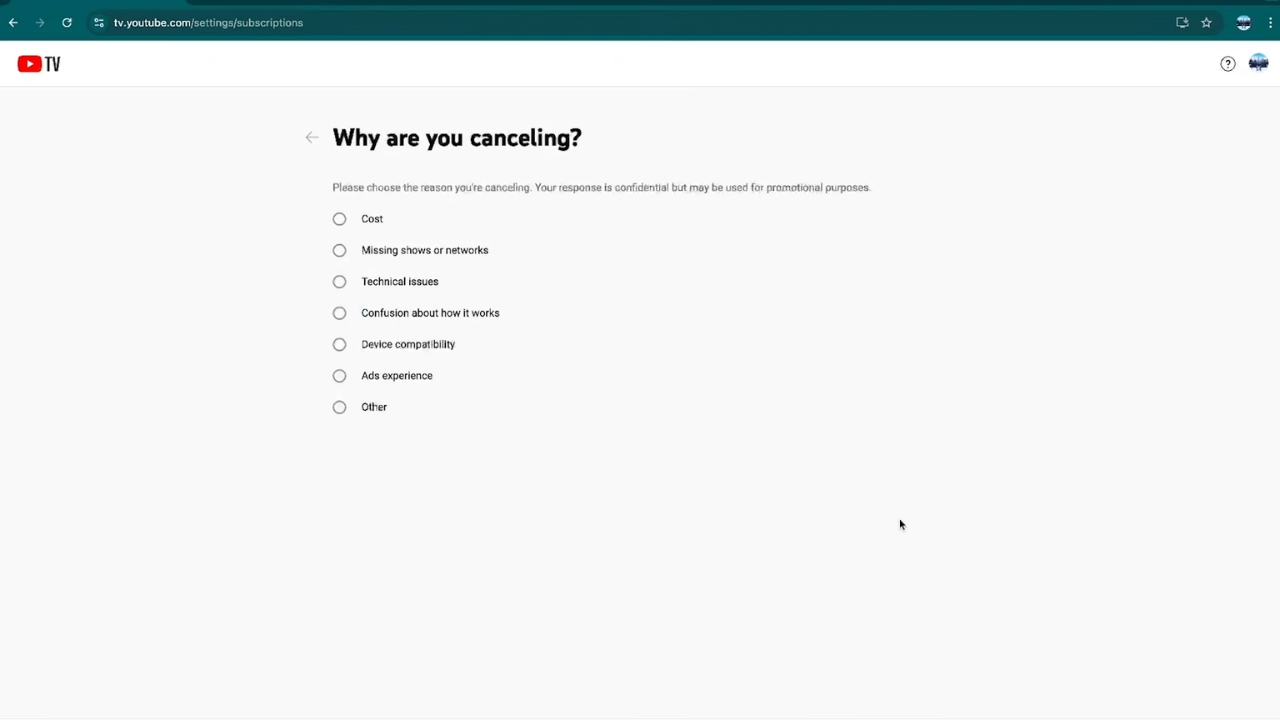
The cancellation process is:
- Open YouTube TV in a web browser and sign in.
- Select your profile photo.
- Open Settings.
- Select Membership.
- Choose Manage.
- Select Cancel membership.
- Confirm the cancellation.
That’s the practical answer to how to cancel YouTube TV. Google has resisted turning the process into the kind of subscription escape room some companies seem strangely proud of creating.
Canceling does not normally shut off YouTube TV immediately. You keep access through the end of the billing period you’ve already paid for.
The same general rule applies if you’re canceling during a free trial. If you specifically want access removed immediately, Google says you need to contact YouTube TV support.
I actually prefer that system. You paid for the month, so you get the month. Canceling on the 12th shouldn’t make the remaining days you already bought disappear.
What Happens After You Cancel YouTube TV?
Once the paid period ends, your live TV access disappears along with access to any add-on networks tied to the membership. The bigger issue is your DVR library.
YouTube TV says recorded programs in your library expire 21 days after the end of your payment period when you cancel.
Google keeps your library preferences in case you return later, but you should not assume the actual recordings will still be waiting for you.
You also may lose eligibility for previous promotional pricing if you sign up again.
That DVR rule matters because it creates the clearest difference between canceling and pausing.
Canceling ends the relationship. Pausing keeps your account in a kind of temporary storage mode.
Your Recordings Are the Part I’d Think About
YouTube TV’s unlimited DVR is one of its better features, and people can build enormous libraries without really noticing it.
If you’ve spent months recording shows, sports, movies, and various things you absolutely swear you’ll watch eventually, canceling puts that library on a much shorter clock.
For someone who doesn’t care about old recordings, that’s irrelevant. For someone with a carefully built library, it can be the strongest argument for pausing instead.
How to Pause YouTube TV
If you’re trying to figure out how to pause YouTube TV, the process starts in almost exactly the same place:
- Open YouTube TV in a web browser.
- Select your profile picture.
- Go to Settings.
- Choose Membership.
- Select Manage.
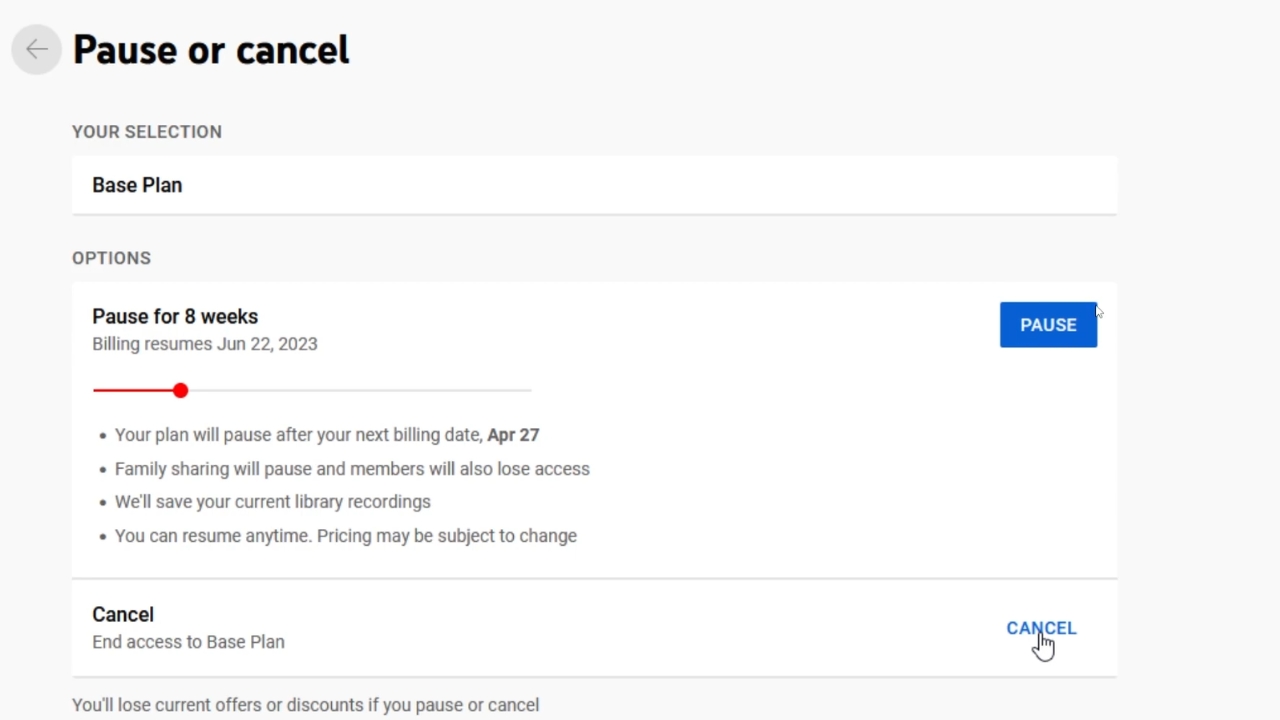
- Choose how long you want the pause to last.
- Select Pause.
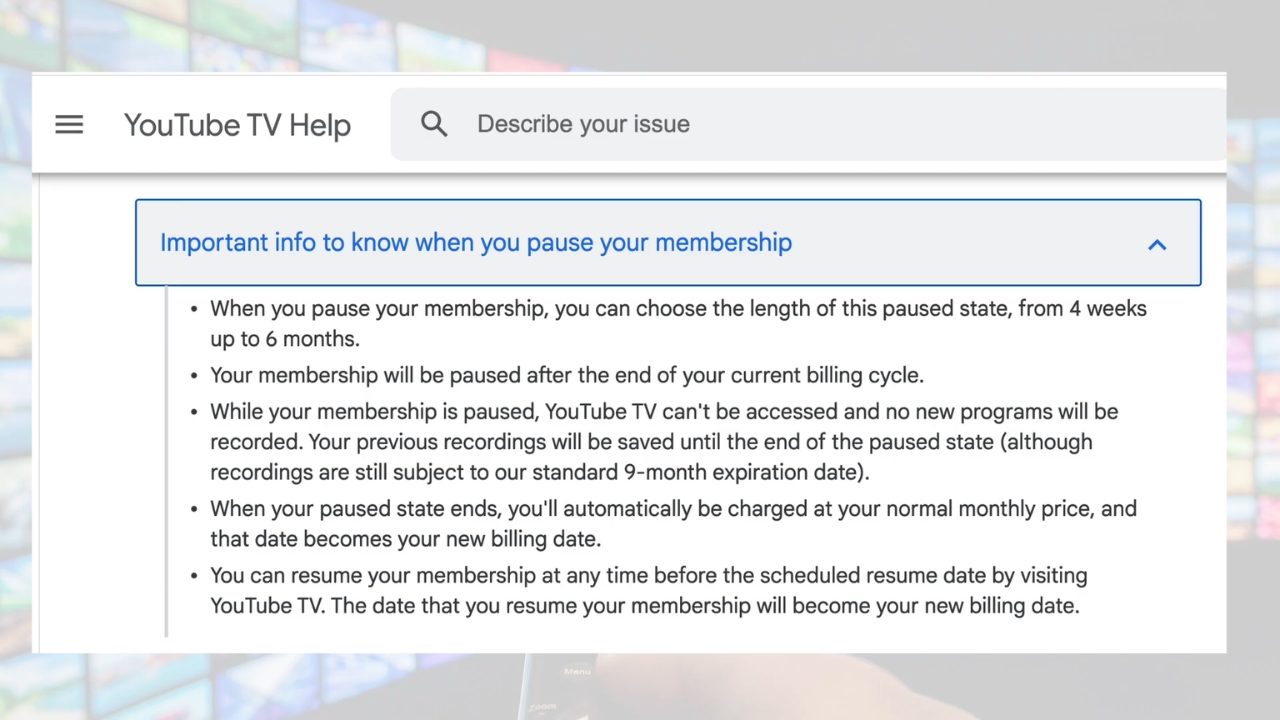
Google currently lets you pause a YouTube TV membership for four weeks to six months. The pause begins after your current billing cycle ends rather than the moment you request it.
During the pause, you cannot watch YouTube TV and the service will not record new programs for you.
Your existing recordings, however, stay associated with the account during the pause, subject to YouTube TV’s normal nine-month expiration rule for recordings.
Google’s membership management instructions also explain how pausing and resuming affect billing.
That last part is why pausing is much more useful than it initially sounds.
Pausing Isn’t the Same as Canceling for a Few Months
Here’s the easiest way I can explain the difference.
[su_table responsive=”yes”]
| Cancel YouTube TV | Pause YouTube TV | |
| Stops future monthly charges | Yes | Yes, during pause |
| Access continues through current billing period | Yes | Yes |
| Maximum time away | No set limit | Up to 6 months |
| Existing recordings | Expire after cancellation period | Preserved during pause, subject to normal 9-month expiration |
| New recordings during time away | No | No |
| Service restarts automatically | No | Yes |
| Good for uncertain return date | Yes | No |
| Good for short planned break | Usually not | Yes |
[/su_table]
The automatic restart is the big one.
When your selected pause ends, YouTube TV automatically resumes the membership and charges the normal monthly price.
That date becomes your new billing date. You can also resume early, in which case the day you restart becomes the new billing date.
In other words, pausing is not a polite version of canceling, but a scheduled return. And Google, naturally, is perfectly happy to schedule the moment it starts taking your money again.
When Pausing YouTube TV Makes More Sense
I would pause rather than cancel when I already know the break is temporary.
You Only Watch During Certain Sports Seasons
Sports are probably the clearest example.
Plenty of people don’t need live television twelve months a year. They want football, basketball, baseball, college sports, or some combination that causes them to spend half the year staring at score graphics.
If your season ends and you expect to return in two or three months, pausing is cleaner than canceling and rebuilding everything later.
You’re Going Away for a Month or Two
Paying for live television in an empty house has never struck me as a particularly sophisticated use of money.
If you’re traveling for an extended period and know roughly when you’ll be home, pause it.
Your subscription stops during the break, your existing recordings aren’t immediately put on the cancellation countdown, and the service comes back when you’ve told it to.
You Want a Break Without Dismantling Your Setup
Maybe you’re testing another live TV service. Maybe you simply aren’t watching enough television right now. A pause gives you a reversible decision.
If Netflix already handles most of your household’s entertainment, it’s worth checking how many people can watch Netflix at once before paying for another television subscription.
I like that option for someone who’s genuinely undecided because canceling a service just to sign up again five weeks later creates administrative work without accomplishing much.
When Canceling Makes More Sense
@justinfloyd I canceled my YouTube TV subscription #youtube #tv #espn #football ♬ original sound – Justin Floyd
Canceling is the better choice when your return date is genuinely unknown.
The important difference is that a paused membership eventually comes back on its own. If you cannot confidently say you’ll want YouTube TV again within the next six months, an automatic restart is more liability than convenience.
It also makes sense to cancel if you’ve moved to another live TV service, stopped watching live television altogether, or expect your break to last longer than YouTube TV’s six-month pause limit.
Canceling YouTube TV doesn’t mean giving up regular YouTube. The video platform now leads U.S. television viewing, so there’s still plenty to watch without paying for live channels.
That is really all the decision needs to be. You do not need a complicated subscription strategy. You just need to know whether this is a temporary break or an indefinite one.
Before Canceling, Check Your Add-Ons
There is another option people overlook. YouTube TV lets subscribers remove individual add-on networks without canceling the main membership.
So if your real problem isn’t YouTube TV itself, but the amount appearing on the bill, look at what you’ve added first.
The rest of your subscription bill deserves the same scrutiny. Disney+ Premium’s price increase will raise its monthly cost to $21.49 for existing subscribers on or after October 21, 2026.
Sports packages, premium channels, and other extras can quietly turn one subscription into several subscriptions wearing a trench coat.
Removing the add-ons may solve the problem without touching the core service.
So, Should You Cancel or Pause YouTube TV?
View this post on Instagram
My rule is simple. If you know you’ll probably want YouTube TV again within the next few months, pause it.
You avoid paying during the break, keep your existing recordings under the normal DVR expiration rules, and don’t have to start from scratch when you return.
If your return date is unknown, cancel it.
The main thing to remember is that a pause eventually ends and billing starts again automatically. That’s useful when it matches your plan and annoying when it doesn’t.
Streaming was originally supposed to make television simpler.
We now have subscriptions we subscribe to, unsubscribe from, pause, resume, bundle, unbundle, and occasionally rediscover on a credit-card statement three months later. Progress, apparently.
At least in this case, Google gives you both options. Knowing how to cancel YouTube TV gets you out completely.
Knowing how to pause YouTube TV can save you the trouble when all you really wanted was a few months away.